ELECHOUSE RFID TCP Broker Test Guide
This guide describes how to test the online TCP Broker path for the ELECHOUSE Network RFID Reader. The device is configured through COM3, connects to rfid-tcp-broker, uploads reader events, and receives commands from the web page.
1. Tool Overview
ELECHOUSE RFID TCP Broker is an online test utility for validating the network path of an ELECHOUSE Network RFID Reader. The web page creates a temporary test session, the device connects to the Broker over plain TCP, and the page displays uploaded reader events in real time.
The source repository is provided for developers who want to review the Broker protocol, deploy a customized server, or adapt the online test workflow to their own production environment.
2. Test Scope
The TCP Broker test verifies the full network path between the RFID reader firmware and the online ELECHOUSE test page.
www.elechouse.com:9000 in ELECHOUSE Test mode.3. Test Environment
| Item | Value |
|---|---|
| Browser | System Google Chrome on Windows |
| Web test page | https://www.elechouse.com/rfid-tcp-broker/ |
| Firmware command input | USB CDC serial on COM3, 115200 8N1 |
| WiFi network | SSID YOU, connected with IP 192.168.124.18 |
| Measured session code | 93TQT44G |
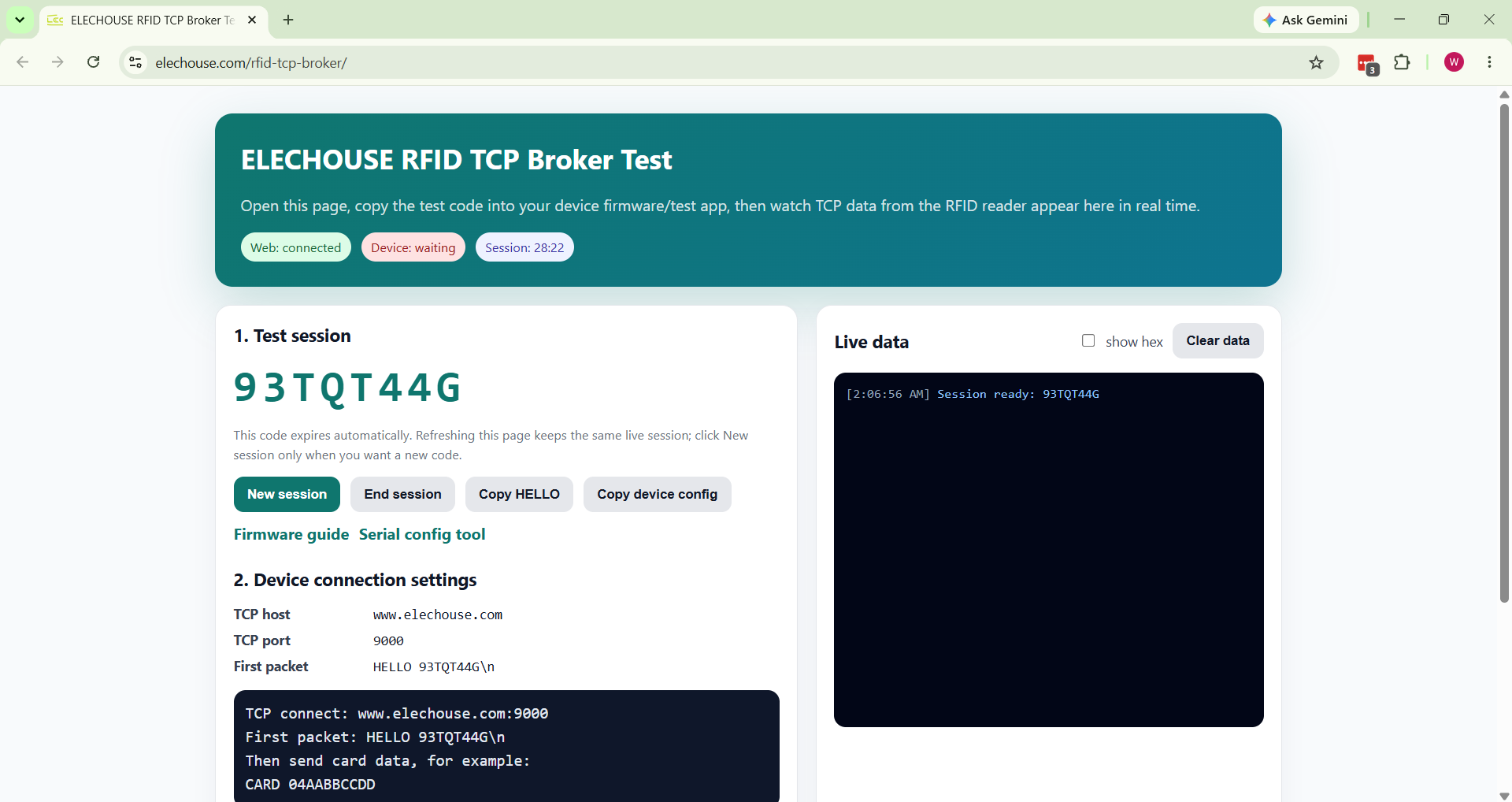
4. Open Broker Page and Get Session Code
- Open
https://www.elechouse.com/rfid-tcp-broker/in system Chrome. - Confirm that the page shows
Web: connected. - Copy the displayed session code. In this test run, the code was
93TQT44G. - Use
Copy device configif the host, port, and first-packet reference are needed.
Host: www.elechouse.com
Port: 9000
First packet: HELLO 93TQT44G\n
5a. Configure Session With Serial Config Tool
The recommended graphical configuration path is the ELECHOUSE Serial Config Tool. It can configure WiFi and the ELECHOUSE Test session code through Web Serial without requiring a separate serial terminal.
- Open
https://www.elechouse.com/rfid-serial-config/in system Chrome. - Connect to the product serial port, usually
COM3, at115200 8N1. - In
TCP / ELECHOUSE Test, selectELECHOUSE Testas the TCP mode. - Paste the current Broker page session code into
ELECHOUSE session code. - Keep
eventsandcommandsenabled. - Click
Apply selected TCP mode, then checkelechouse statusortcp status.
Save settings to device only when the device should reconnect to the Broker automatically after reboot.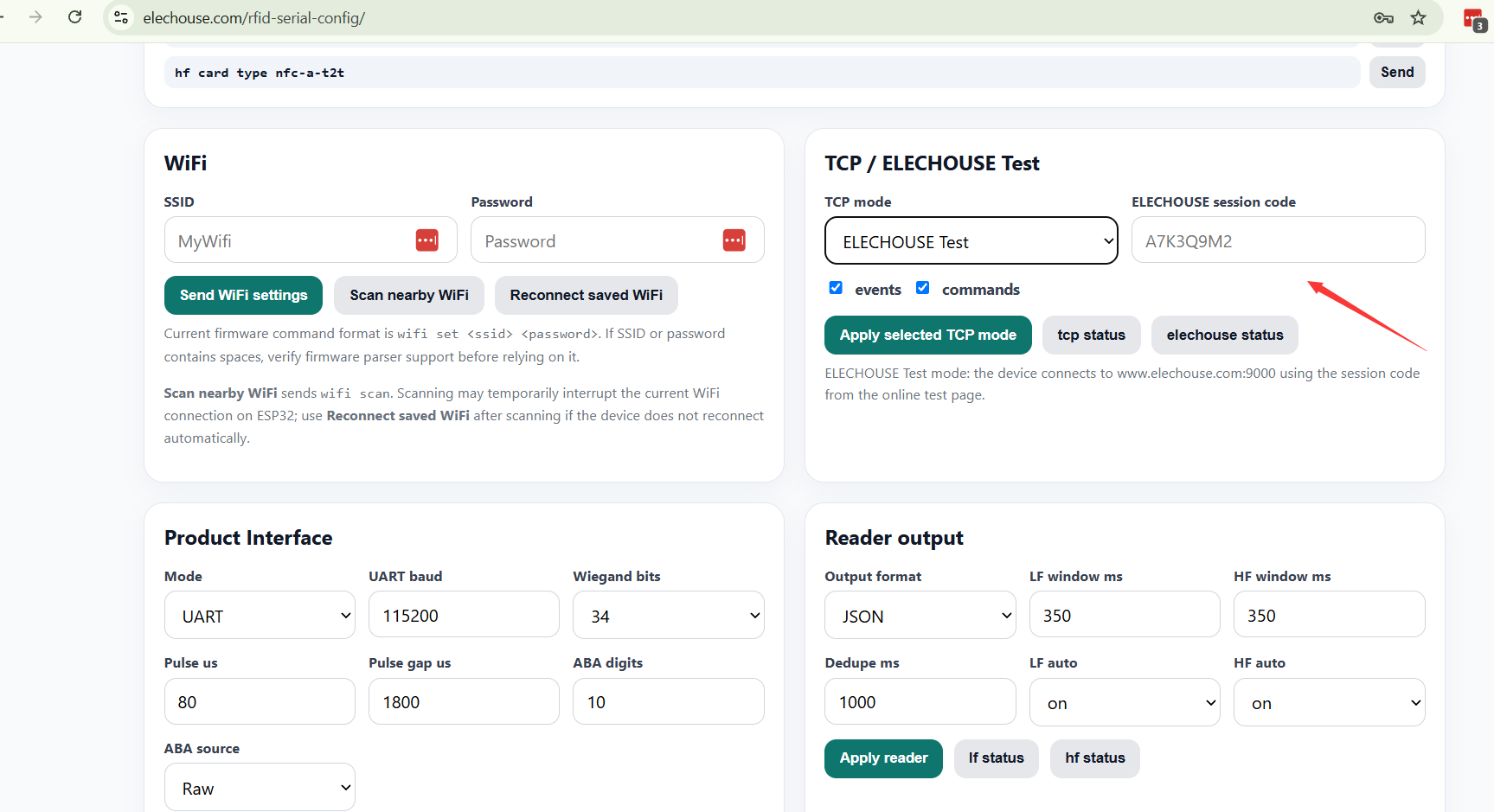
5b. Configure Session With Serial Commands
Use this method when direct COM3 command-line configuration is preferred over the graphical Serial Config Tool. Do not use historical aliases in product documentation.
- Open COM3 at
115200 8N1. - Check that WiFi is connected with
wifi status. - Enable the online test connection with
elechouse on <session_code>. - Check the broker state with
elechouse statusandtcp status.
wifi status
elechouse on <session_code>
elechouse status
tcp status
Measured serial log
TX: wifi status
RX: wifi ssid=YOU passLen=9 hostname=ELECHOUSE_RFID status=CONNECTED(3) ip=192.168.124.18 rssi=-50

TX: elechouse on 93TQT44G
RX: OK elechouse test on
RX: ELECHOUSE broker OK 93TQT44G

TX: elechouse status
RX: elechouse host=www.elechouse.com port=9000 session=93TQT44G mode=elechouse connected=yes brokerOk=yes

TX: tcp status
RX: tcp mode=elechouse host=www.elechouse.com port=9000 listen=9000 events=on commands=on session=93TQT44G connected=yes brokerOk=yes
6. Verify Broker Handshake
After elechouse on <session_code>, the firmware opens a plain TCP socket to the Broker and sends a HELLO packet. A successful handshake is confirmed on both sides.
| Side | Expected Signal | Measured Result |
|---|---|---|
| Serial | ELECHOUSE broker OK <session_code> |
ELECHOUSE broker OK 93TQT44G |
| Web page | Device: connected |
Device: connected |
| Status command | connected=yes brokerOk=yes |
connected=yes brokerOk=yes |
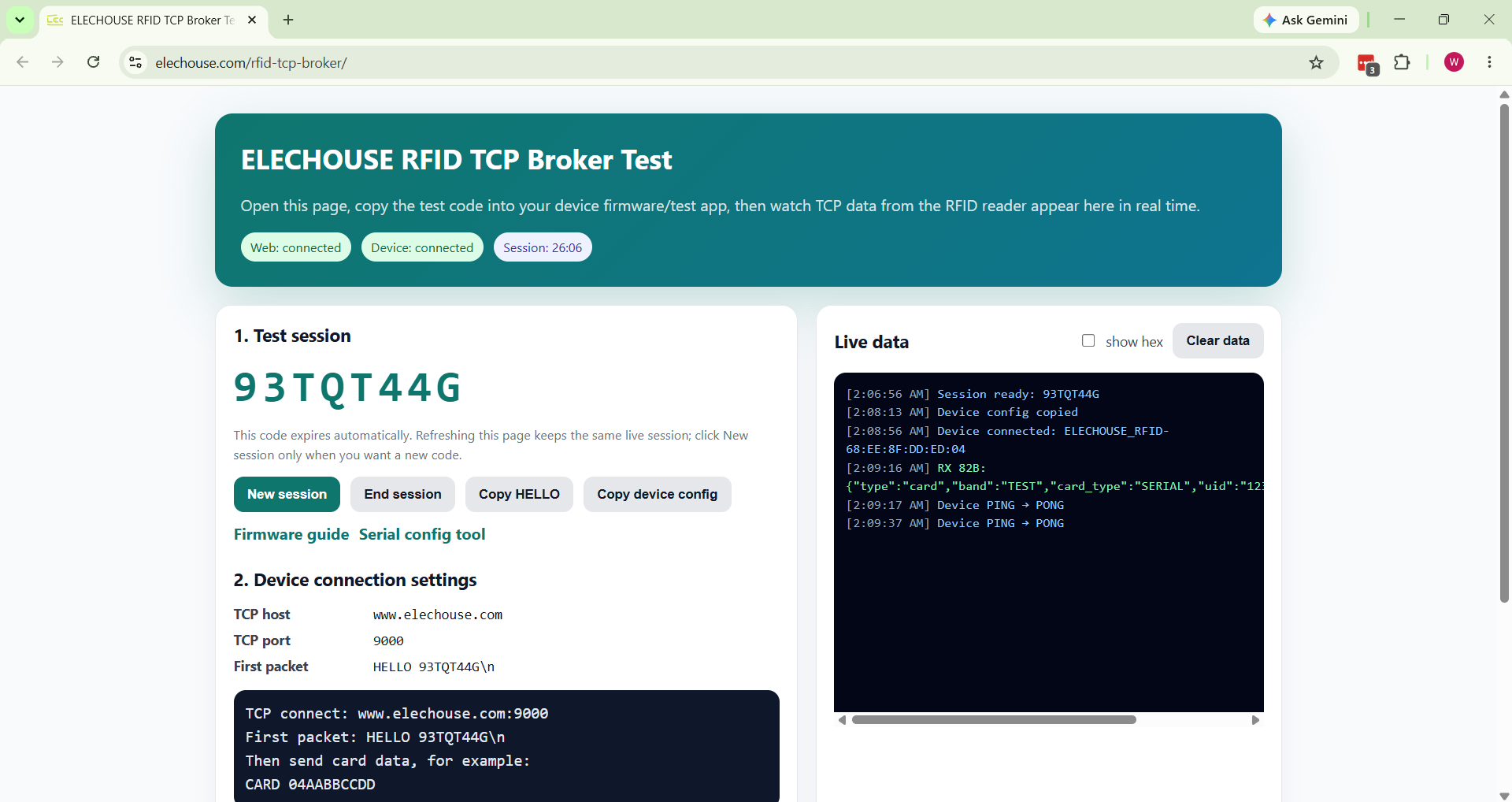
7. Upload Data to the Broker
Use a real card read for production verification. When a real card is not required, the firmware command test can generate a test event to verify the upload path.
- Keep the Broker page open.
- Confirm
Device: connected. - Send
testthrough COM3 or place an HF card on the antenna. - Confirm that the Broker Live data window receives a JSON event.
TX: test
RX: {"band":"TEST","type":"SERIAL","id":"12345678","ms":15681853}
8. Send a Command From the Web Page
The Broker page can send one command line back to the device. This requires TCP commands to be enabled, which is done automatically when elechouse on <session_code> is used.
- Scroll to
Send data back to device. - Enter a command such as
status. - Keep
append LF (\n)checked. - Click
Send to device. - Confirm that the device response appears in Live data.
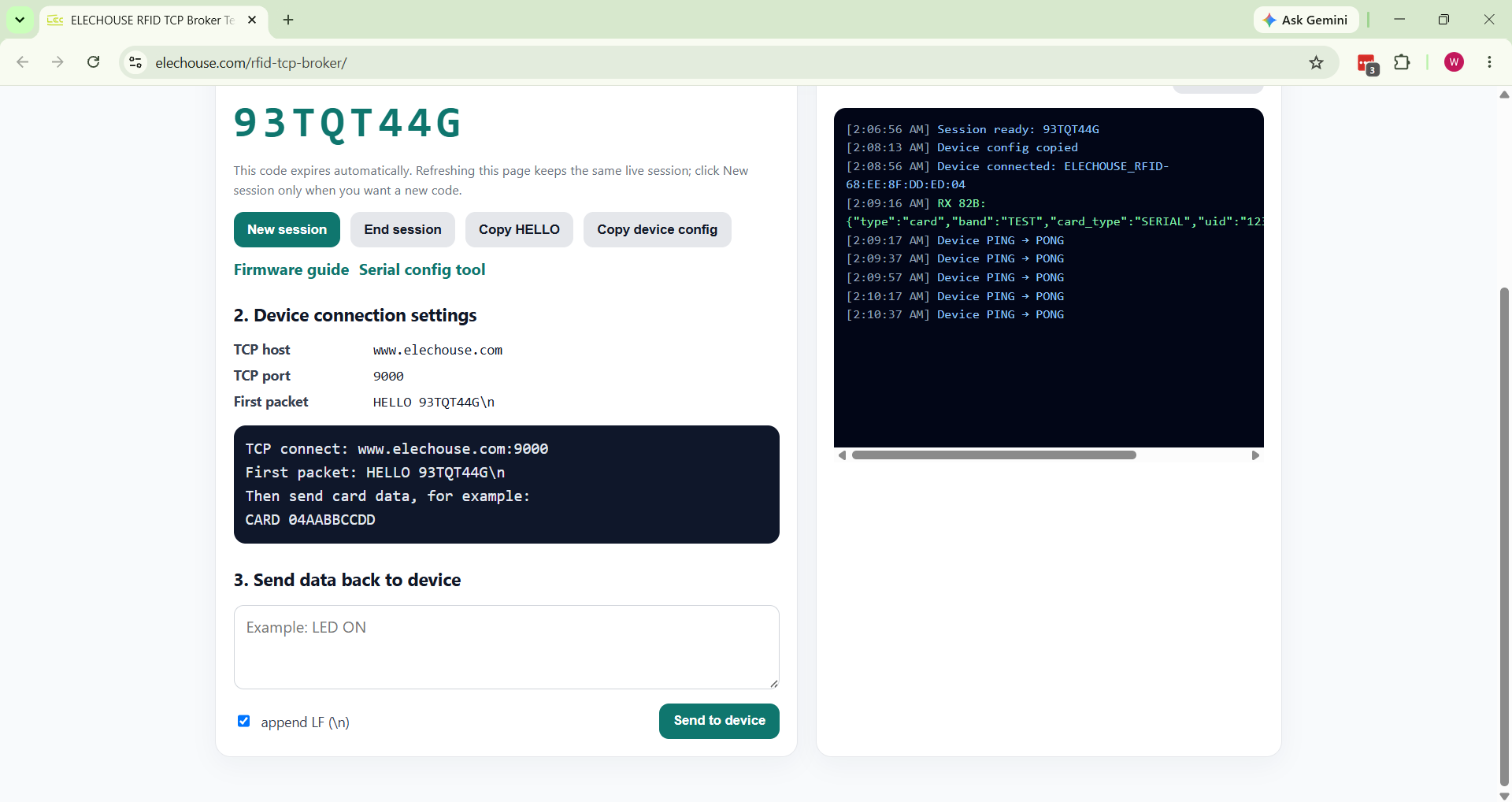
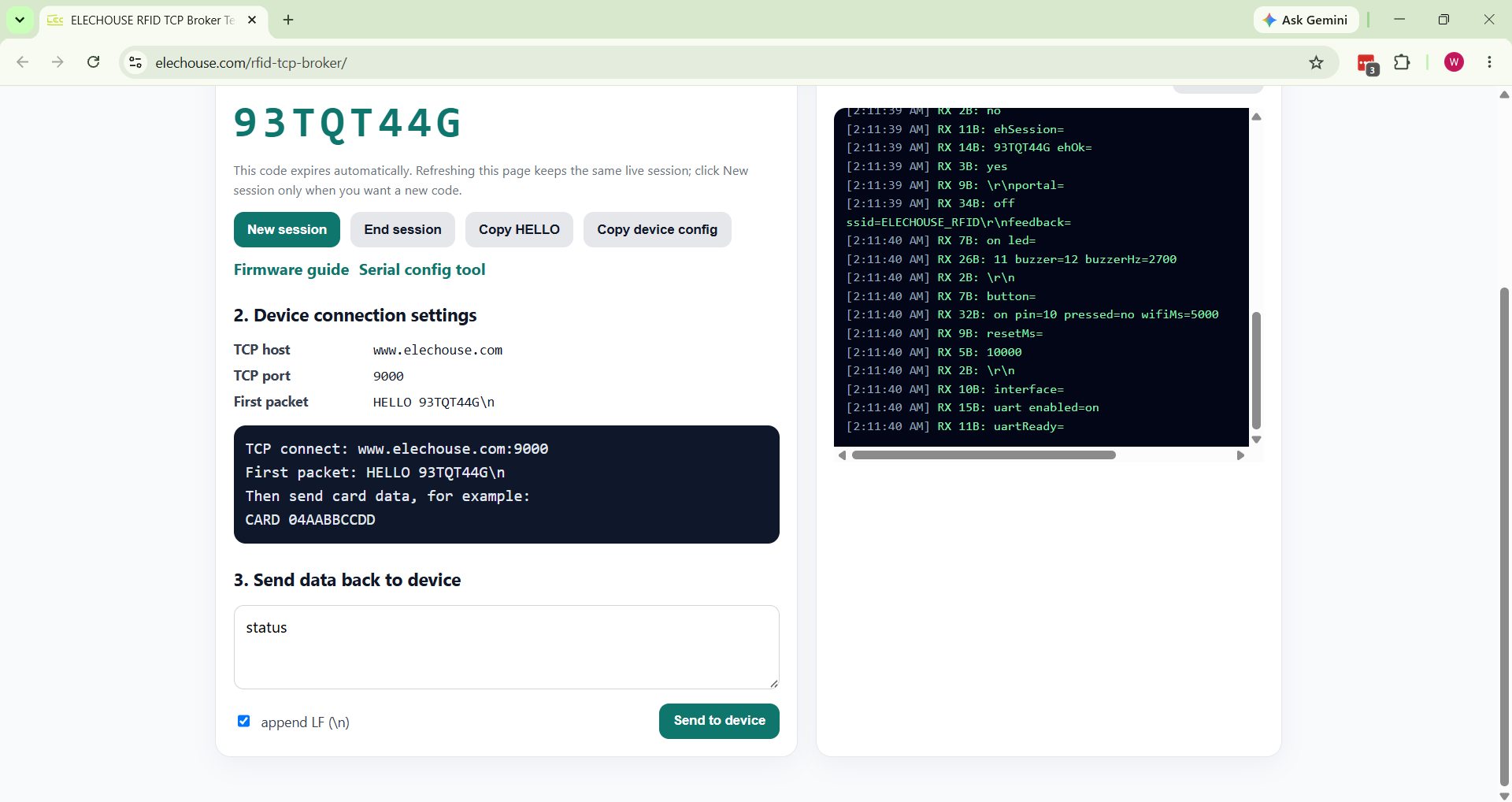
status and received fragmented status output from the device in Live data.9. Cleanup After Testing
For this run, the session code was used only at runtime. The device was not saved with this temporary code.
- Click
End sessionon the Broker page when the web-side test is complete. - Run
elechouse offto leave ELECHOUSE Test mode at runtime. - Run
tcp statusto confirm the TCP mode is off. - If a session code was saved during another test, run
elechouse clearand thensave.
TX: elechouse off
RX: OK elechouse test off

TX: tcp status
RX: tcp mode=off host= port=9000 listen=9000 events=on commands=on
10. Troubleshooting
| Symptom | Likely Cause | Action |
|---|---|---|
The page stays at Device: waiting |
The device has not connected to the Broker, WiFi is not connected, or the session code is wrong. | Run wifi status, then run elechouse on <current_session_code> again. |
unknown_or_expired_code |
The session expired, was ended, or was replaced by New session. | Use the current code shown on the page and update the device with elechouse on <session_code>. |
connected=yes but brokerOk=no |
The TCP socket is connected, but HELLO binding has not succeeded. | Check the session code and the Broker Live data for an ERR message. |
| No card events appear | TCP events are off, HF scan is not ready, or duplicate suppression hides repeated reads. | Check tcp status, hf status, and try test to verify the upload path. |
| Web commands do not work | TCP commands are disabled or the command is missing the line ending. | Use elechouse on <session_code> and keep append LF (\n) checked. |
11. Test Record
| Test Item | Result | Record |
|---|---|---|
| Broker page opens and generates session code | PASS | Session code 93TQT44G was generated. |
| Device WiFi status | PASS | SSID YOU, CONNECTED(3), IP 192.168.124.18. |
| ELECHOUSE Broker handshake | PASS | Serial log showed ELECHOUSE broker OK 93TQT44G. |
| Broker web-side device state | PASS | The web page showed Device: connected. |
| Data upload | PASS | The test command uploaded a JSON event to Live data. |
| Web command downlink | PASS | The web page sent status and received status output. |
| Runtime cleanup | PASS | elechouse off returned TCP mode to off. |
No save command was executed during this run, so the temporary session code was not stored as a persistent device setting.